Web UI
The hassette web UI gives you a real-time window into your running automations — app health at a glance, per-handler invocation history, structured logs, and full system configuration. It runs as part of the same process as the REST API, so there's nothing extra to start.
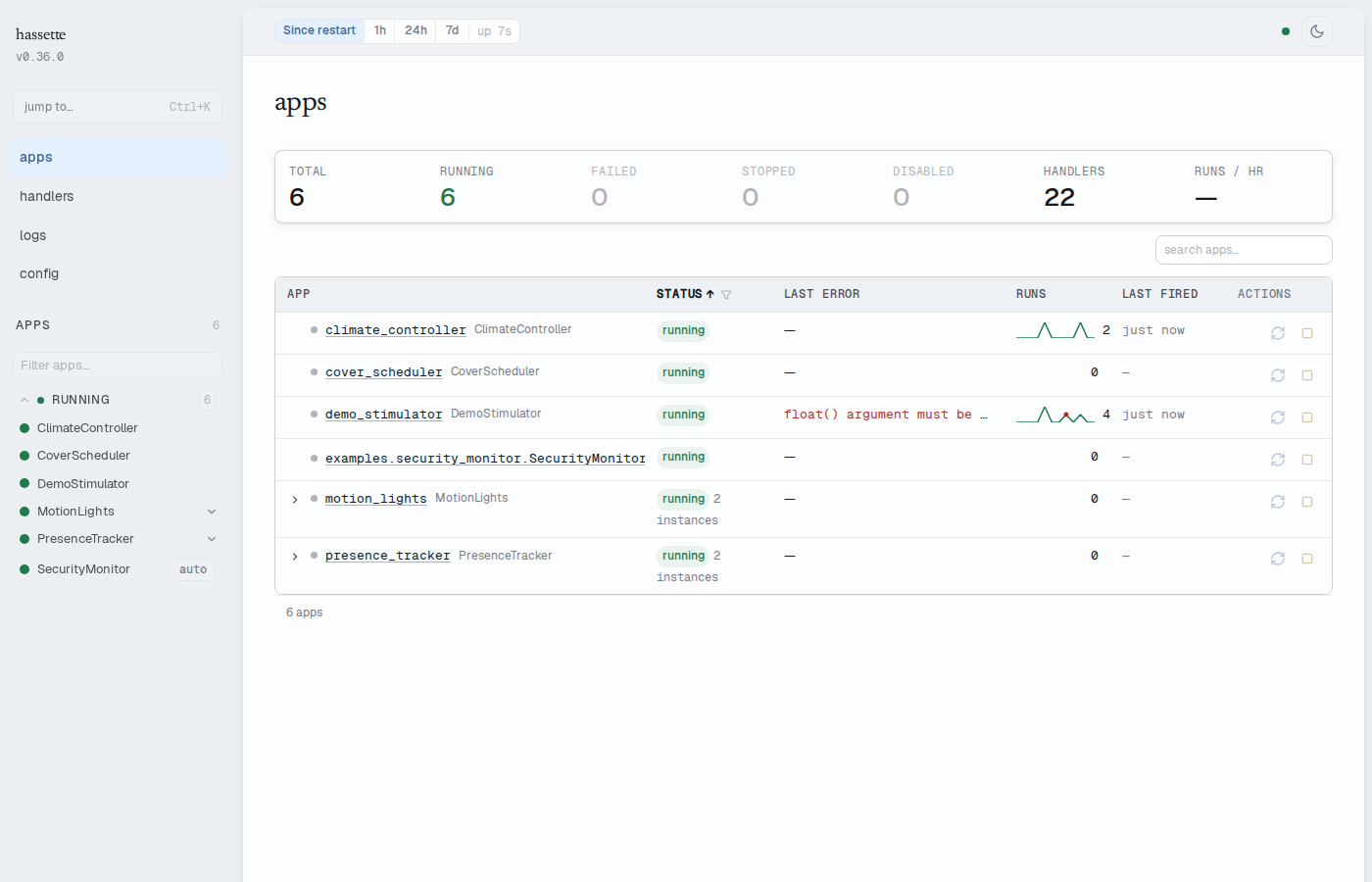
Enabling and accessing
The web UI is enabled by default. Once Hassette starts, open your browser to:
http://<host>:8126/ui/
The default bind address is 0.0.0.0:8126. To change the host or port, set host and port under [hassette.web_api] in your hassette.toml.
No authentication
The web UI has no built-in authentication. By default, the server binds to
0.0.0.0, making it accessible to anyone on your network — including
endpoints that can start, stop, and reload your automations.
For local-only access, set host = "127.0.0.1" under [hassette.web_api].
For remote access, place Hassette behind a reverse proxy with authentication
(e.g., Caddy, nginx, or Traefik with basic auth or SSO).
To disable the UI while keeping the REST API:
[hassette.web_api]
run_ui = false
First run
A fresh installation shows empty tables and zero counts until automations run and handlers fire. This is expected — telemetry accumulates as your apps process events.
Configuration quick reference
| Setting | Type | Default | Description |
|---|---|---|---|
[hassette.web_api] run |
bool | true |
Enables the web API service (REST API + UI backend) |
[hassette.web_api] run_ui |
bool | true |
Serves the web UI (requires run = true) |
[hassette.web_api] host |
string | "0.0.0.0" |
Bind host |
[hassette.web_api] port |
int | 8126 |
Bind port |
[hassette.web_api] cors_origins |
tuple | ("http://localhost:3000", "http://localhost:5173") |
Allowed CORS origins |
[hassette.web_api] event_buffer_size |
int | 500 |
Recent events ring buffer size |
[hassette.web_api] log_buffer_size |
int | 2000 |
Log entries ring buffer size |
[hassette.web_api] job_history_size |
int | 1000 |
Job execution records to keep |
[hassette.web_api] ui_hot_reload |
bool | false |
Live-reload on static file changes |
See Global Settings for the full configuration reference.
Related pages
- Layout & Navigation — sidebar, status bar, command palette, and cross-cutting chrome
- Apps — monitor and manage your automations