Config Tab
The Config tab shows the configuration loaded for this app: file path, class name, enabled state, and the full set of config field values with their types. Use it to verify that the right configuration was loaded, check which values are set versus defaulted, and inspect the parsed config values as JSON.
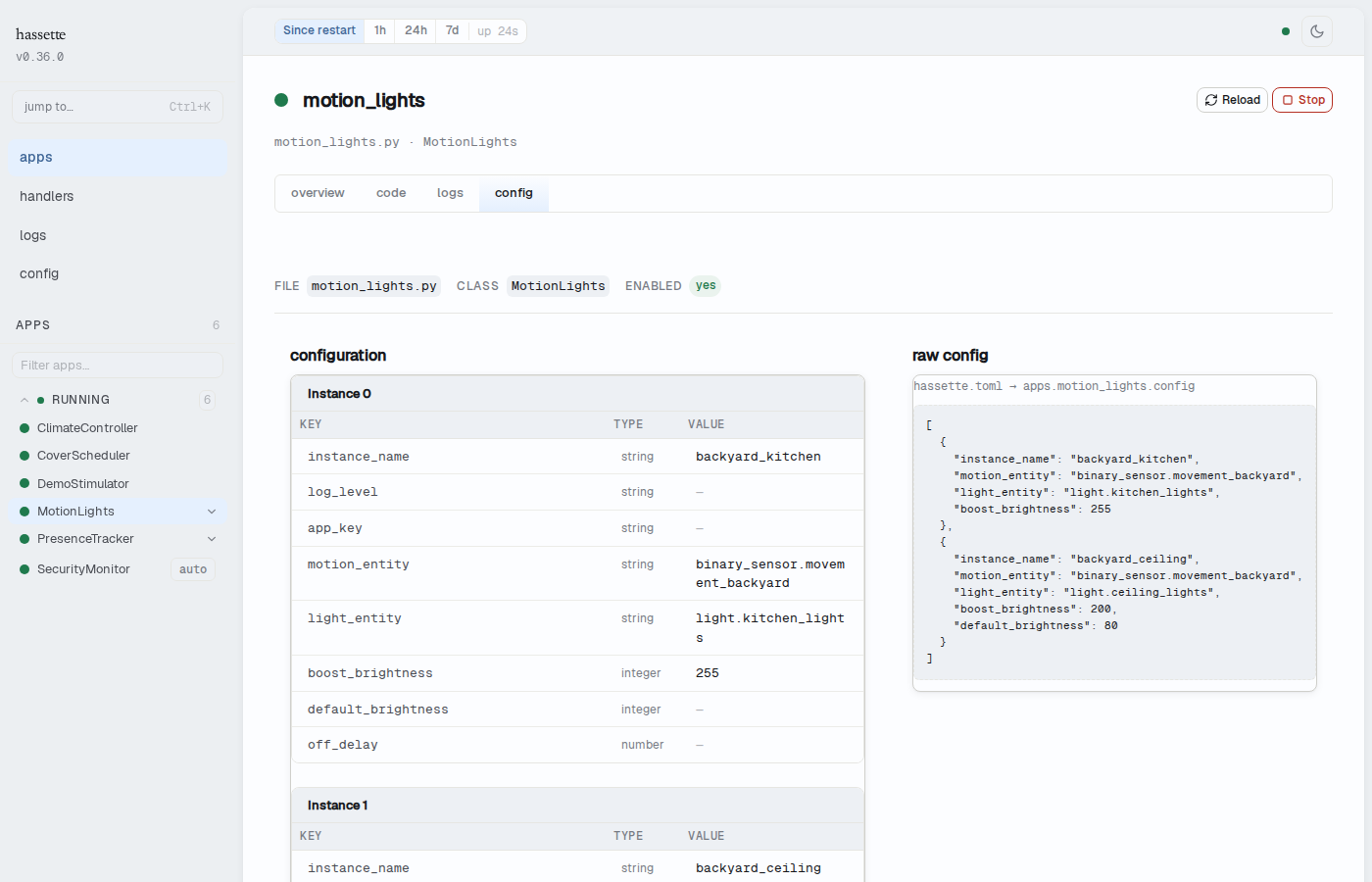
Metadata header
The header shows three fields sourced from the app's registration:
| Field | Description |
|---|---|
| File | Path to the source file containing this app class (monospaced) |
| Class | Python class name of the app (monospaced) |
| Enabled | yes (green) if the app is enabled, no if disabled |
Configuration table
The main panel shows a typed table of all configuration fields declared on the app's
AppConfig class. Column types are derived from the class schema:
| Column | Description |
|---|---|
| Key | The config field name as defined on the AppConfig class |
| Type | Python type — string, number, boolean, or a union like string \| null |
| Value | The loaded value. — is shown when the value is None or not set. |
Fields defined in the AppConfig schema are shown first, followed by any extra keys present
in the loaded config that don't appear in the schema.
Complex values
Object and array values show a summary ({N keys} or [N items]). Click the summary to
expand the full JSON inline below the row.
Apps with no custom config
If the app uses the base AppConfig without any custom fields, the table shows "no
configuration fields — this app uses the default AppConfig with no custom fields."
Raw config panel
Below the configuration table, the raw config section shows the JSON representation of
the config values exactly as loaded at startup. The header shows where these values
originated in hassette.toml:
hassette.toml → apps.<app_key>.config
This is useful for verifying environment variable overrides, confirming that nested config values were parsed correctly, or copying a value to use in a test fixture.
Multi-instance apps
Apps with multiple instances configured in hassette.toml show each instance in its own
block with an Instance N heading (starting at Instance 0). Each block has its own
typed configuration table showing the values for that instance.
The raw config panel below shows the full array of instance configs.
Tip
To navigate between instances, use the instance switcher at the top of the App Detail page. The Config tab updates to show the selected instance's values.
Related pages
- App Detail — breadcrumb, instance switcher, and tab strip